
Most Recent in ArcGIS Blog
Harnessing the Power of Imagery: A Programmatic Approach
A Developer approach to imagery.
Identify the best location for an urgent care center
Multiple Authors | Analytics | April 2, 2024
Use suitability analysis in ArcGIS Business Analyst Web App to locate a site for a new urgent care center in Maverick County, Texas.
Most Recent in ArcGIS Blog
Multiple Authors | Developers | Apr 24, 2024
A Developer approach to imagery.

Shree Rajagopalan | ArcGIS Pro | April 24, 2024
Learn how to dynamically produce output data and information products at any scale from a single best-scale data source.
Lisa Berry | ArcGIS Living Atlas | April 23, 2024
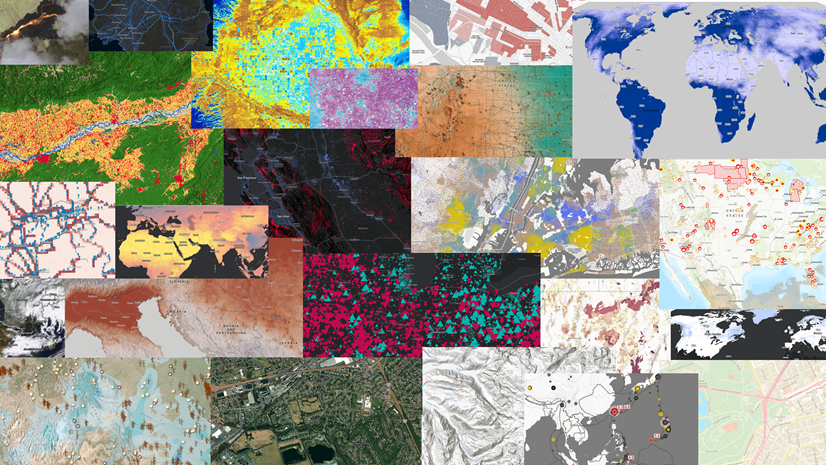
Do you have questions about how to access, use, or nominate content within ArcGIS Living Atlas of the World? Check out this blog for answers.

Multiple Authors | ArcGIS Hub | April 23, 2024
Open data provides a foundation for collaboration and community engagement. It helps build trust and focuses discussions on fact.

Katie Thompson | ArcGIS Urban | April 23, 2024
ArcGIS Urban will soon be available with ArcGIS Enterprise, providing planners with a new way to leverage their city's GIS data for planning.

Multiple Authors | ArcGIS Mission | April 22, 2024
ArcGIS Mission 11.3 is coming soon. New features and enhancements bring analyst notes, new admin and user settings, and more!

Multiple Authors | ArcGIS StoryMaps | April 22, 2024
Get storytelling advice and conservation inspiration from the winners of the 2023 ArcGIS StoryMaps Competition.

Greg Lehner | ArcGIS Pro | April 22, 2024
If you receive a notification saying there's a drawing alert: don't panic! Let's solve it together.

Kerri Rasmussen | ArcGIS Field Maps | April 22, 2024
Start using Arcade in the Field Maps Designer.

Multiple Authors | ArcGIS Enterprise | April 22, 2024
Representing the user experience during Utility Network design, Mohan Punnam details the importance of keeping users at the forefront.

Multiple Authors | ArcGIS Living Atlas | April 19, 2024
Esri joins Overture Maps Foundation, supporting its mission to create reliable, easy-to-use, and interoperable map data for the globe.
Multiple Authors | ArcGIS Hub | April 18, 2024
Shawnlei Breeding shares her strategies for engaging volunteers and stakeholders to help protect eagles across The State of Florida.

Shane Matthews | ArcGIS Online | April 18, 2024
Esri's Basemaps continue to improve with over 300 new and updated communities, spanning 4 continents.
Multiple Authors | ArcGIS Hub | April 17, 2024
Hubs provide a virtual place for collaboration and engagement to happen within communities of all types and sizes.

Owen Evans | ArcGIS StoryMaps | April 17, 2024
Image gallery has made its way to briefings, and you can highlight a feature in a map by showing its pop-up.

Multiple Authors | Developers | April 17, 2024
We are excited to announce the new ArcGIS Maps SDK for Flutter beta is now available!

Multiple Authors | ArcGIS Indoors | April 17, 2024
Explore questions and answers from our webinar about Indoor GIS: Easy indoor map creation

Jeff Liedtke | ArcGIS Pro | April 16, 2024
Format your metadata for the video multiplexer tool to geoenable video data for the Full Motion Video player.
Multiple Authors | ArcGIS Enterprise | April 15, 2024
From emergency management to utilities, journey with Mark Sanders of Entergy, as he shares his passion for GIS.

Emily Garding | ArcGIS Online | April 12, 2024
Get more precision while editing in ArcGIS Online using interactive tooltips to set your own editing constraints.

John Nelson | ArcGIS Pro | April 12, 2024
How to configure scale-appropriate contour lines and their labels.

Bern Szukalski | ArcGIS Online | April 11, 2024
By default the ArcGIS World Geocoding Service is the locator used across your organization. Here's how to configure and use a locator view.

Multiple Authors | ArcGIS Survey123 | April 11, 2024
Answering regional geographers' favorite question: Where is the Midwest to you?

Rajinder Nagi | ArcGIS Living Atlas | April 11, 2024
In April 2024, elevation layers have been updated with high-res datasets of Wales, New Zealand & German states of Bavaria, Saxony and Brandenburg

Multiple Authors | Developers | April 11, 2024
Version 200.4 of the ArcGIS Maps SDKs for Native Apps includes support for feature forms, snapping, OGC 3D Tiles, and more!

Multiple Authors | ArcGIS Maps SDK for Unreal Engine | April 11, 2024
ArcGIS Maps SDK 1.5 for Unreal Engine adds support for Esri's global OSM 3D Buildings layer, group layers, and more!