We recently added a new JavaScript application template to
ArcGIS.com called the Basic Viewer. Using ArcGIS.com and the Basic Viewer
template, you can quickly create and publish applications with commonly
requested functionality such as a legend, basemap gallery and print tools. The
template includes many out-of-the-box widgets from the ArcGIS API for
JavaScript including the Editor, TimeSlider and Measurement widgets.
The Basic Viewer template is a fully configurable application that you can configure in ArcGIS.com or via a configuration file if you choose to download the template and host it on your
web server.
How to make a web application with the Basic Viewer
Create a Web application based on the Basic Viewer template
by performing the following steps:
- Open an existing map (or create a new one) using
the ArcGIS.com
map viewer. Use the map viewer to add layers, set an extent, configure map popups and add map notes. All of these settings are honored by the template and will appear in the application built using the template. - Click the Share button and choose who can view the map. To publish the map as an application, you need to make the map available to a group, your organization, or the public.
- Click the Make
a Web Application option to display a gallery of templates. - Select Basic Viewer and use the Preview
option to view your web map in the Basic Viewer template. The preview option is a great way to determine which template works best for your map. - Close the preview window and select the Publish option for the Basic Viewer
template to create a custom application based on the template. This published
application is added to ArcGIS.com and can be shared with the public or with
users in your group or organization.
If you would rather host the application on your own
web server, you can select the download option and download a zip file
containing the full source code for the template. The zip file contains
instructions for installing and configuring the template.
Configure the published template
After publishing the web map as an application, use the Configure App option to modify the application’s tools, title and color scheme.
- The last step of the application publishing process displays a dialog with details
about the newly published application, and includes a link so you can view the
item. Click go to the item now to edit the application’s description, thumbnail
image, tags, and to begin the configuration process. You can always access the
application via the My Content tab. - Click the Configure App button to display the application configuration page. This page displays a preview of your web map using the Basic Viewer template along with options that allow you to change the appearance of the application and specify the functionality you want to
include.
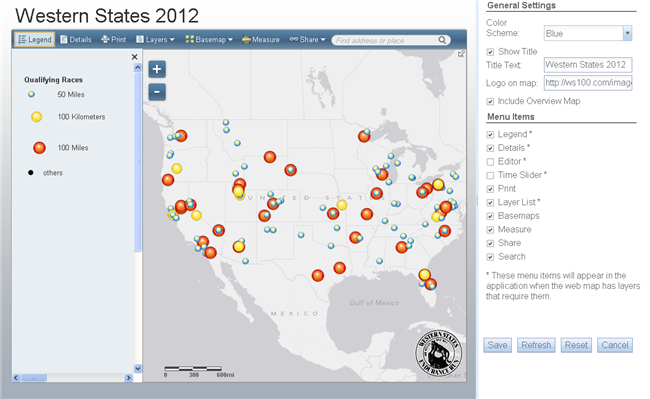
- After making the changes, click Refresh to view the template with your new settings and click Save to apply
the changes to your application. Note that you can return to the configuration panel at any time and modify the template.
Click here
to view an application created using the Basic Viewer template. We hope you enjoy using the new template and are excited to see applications you build!
Contributed by Kelly Hutchins of the ArcGIS API for JavaScript development team
About the author

Commenting is not enabled for this article.