In a previous post Design patterns for Web maps, we talked about strategies and challenges for displaying different types of map layers on the Web for the best performance. Caching is the fastest way to serve Web maps, but requires an initial time investment for cache creation. Also, datasets that change often and cover a broad extent cannot be cached and require a (typically slower) dynamically drawn service.
ArcGIS Server 9.3.1 addresses some of these performance challenges through a new drawing engine, developed for rendering ESRI map services as fast as possible. The faster dynamic drawing in 9.3.1 can speed up your dynamic map services that cannot be cached due to their oft-changing nature. It can also shorten the tile creation time for cached services.
All map services begin with a map document (MXD) that you create in ArcMap. A new toolbar in ArcMap, the Map Service Publishing Toolbar, does two things to help improve your map’s performance.

![]()
First, the toolbar helps you analyze your MXD for potential performance issues. At this stage you can identify bottlenecks that may not be directly related to the drawing engine. These could be things such as missing spatial and attribute indexes, or layers projecting on the fly.
Second, the toolbar gives you a way to create a map service definition (MSD), which is a new file type that works with the optimized drawing engine. The diagram below shows that either an MSD or an MXD can be published as a map service. In this post we’ll talk about when you would use each file type.
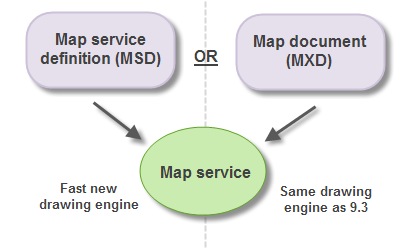
The rest of this article answers common questions about the 9.3.1 MSD-based map service and its related functionality.
What aspects of drawing are improved with the MSD-based map service?
First of all, it’s faster. With MSD-based services, complex symbology does not impose the same performance burden that it does with MXD-based services. Your maps should draw at speeds comparable to or faster than similar ArcIMS maps.
MSD-based services also support anti-aliasing which smoothes the edges of lines and text. This is something that was previously available only in cached map services (with a significant performance cost during cache creation). Anti-aliasing with MSD-based services is available over a range of quality levels, allowing you to get the visual benefits while maintaining control over performance. You also have the option to apply the anti-aliasing to the text only.
The quality of map images return by the MSD-based service is also superior to previous versions. MSD-based services produce less “salt and pepper” dithering because the PNG 8 and GIF palettes are chosen using the 256 most frequently-used colors in the map. Also, with PNG 32 services, true transparent values are used in the anti-aliasing, which means you won’t see artifacts from the background color.
What is the MSD file and can I edit it?
The map service definition (MSD) file is a new file used by the fast map service drawing engine introduced at ArcGIS Server 9.3.1. The MSD file always starts with an MXD map document. You use the Map Service Publishing Toolbar to analyze your MXD in ArcMap. Once you’ve addressed issues returned by the analysis, you use the same toolbar to either publish the service or save the MSD file.
ArcGIS Server is the only application that can read the MSD file.
Where is the MSD file created when I publish a service from the Map Service Publishing Toolbar?
When you publish a service using the Map Service Publishing Toolbar, an MSD file is created in your ArcGIS Server input directory. This is a new directory at 9.3.1 that is registered with ArcGIS Server as the default location of your MSD files. In a one-machine deployment, it’s located by default at c:\arcgisserver\arcgisinput.
The toolbar also allows you to save your MSD file to other locations.
Do I need to be an administrator to publish map services with the Map Service Publishing Toolbar?
You need to be a member of the agsadmin group on the GIS server in order to publish map services from the Map Service Publishing Toolbar. If you’re not a member of agsadmin, you should save the MSD in a location where the server administrator can access and publish it.
If I make changes to the MXD, do I have to create the MSD again?
Yes. Once you save an MSD file, it is no longer connected with its parent MXD. If you edit the MXD, you need to use the Map Service Publishing Toolbar to save an updated MSD. Once you’ve overwritten the old MSD, restart the map service to register the changes.
What capabilities (server object extensions) are supported for MSD-based map services?
The WMS and KML capabilities are available with MSD-based services, as well as the default Mapping capability. Custom server object extensions can also work with MSD-based services but they cannot access fine-grained ArcObjects; they must use the coarse-grained methods on MapServer and its related classes.
At 9.3.1 can I still publish an MXD as a map service?
Yes. You can still publish an ArcMap document (MXD) as a service. The service will not use the new drawing engine introduced at 9.3.1; it will use the traditional drawing engine from ArcGIS Server versions 9.3 and previous.
Can I cache an MSD-based service?
Absolutely. Cache tiles get created more quickly with an MSD-based service. Also, anti-aliasing works better with caching when you use MSD-based services. The anti-aliasing occurs faster than it does with MXD-based services, and you can control the level of anti-aliasing on both features and text.
What layer types are supported by the MSD-based map service?
The MSD-based map service supports the most commonly-used feature layers and rasters. Exceptions, such as CAD layers or TINs, should be placed in a separate, MXD-based map service. The Map Service Publishing Toolbar will log errors for any layers in your map document that would prevent you from publishing an MSD-based service.
What else is available / not available in MSD-based services?
The ArcGIS Server 9.3.1 Help topic Supported functionality in MSD-based map services contains a full list of layers, symbology, and functionality available in MSD-based map services. All symbols are available with the exception of chart symbols, representations, and 3D symbols. The Maplex labeling engine is not available.
How am I supposed to use MSD-based services if Maplex isn’t supported?
Use annotation layers, which are supported in MSD-based map services. Annotation gives you the benefit of the Maplex label placement without the server having to make computationally intensive label placement decisions on every map request. Creating cache tiles from the annotated map will cause the service to run even faster.
If you can’t make annotation and you need Maplex, your next best option for performance is to create a cache from an MXD-based service.
When publishing raster datasets, should I use MSD-based map services or should I use the ArcGIS Server Image extension?
In most circumstances, it’s faster to serve rasters through the ArcGIS Server Image extension instead of through map services (whether cached or dynamic). A cached map service may be a more scalable solution if your service will receive many hits at once, but a cache requires creation and maintenance of tiles. MSD-based services will speed up the tile creation if you decide to use a cached service.
When should I use anti-aliasing?
Choose anti-aliasing when you are creating a production-quality map for an Internet audience. Anti-aliased images have become a standard for Web 2.0 map appearance.
Be aware that high levels of anti-aliasing can slow performance. Use the Preview button on the Map Service Publishing Toolbar to get an idea of the visual and performance effects of the anti-aliasing. If the dynamic anti-aliasing is not fast enough, you can lower the quality of the anti-aliasing or you may consider caching the service.
What licensing do I need in order to use the Map Service Publishing Toolbar?
The Map Service Publishing Toolbar is available at all license levels of ArcGIS Desktop (ArcView, ArcEditor, and ArcInfo). You can use the toolbar to analyze and improve the performance of your map documents even if you won’t be publishing an MSD-based map service.
Contributed by Ty Fitzpatrick and Sterling Quinn of the ESRI software development team

25 Responses to Questions and answers about ArcGIS Server 9.3.1 map services
Leave a Reply
You must be logged in to post a comment.
The input directory works like the other server directories (cache, jobs, and output) in that you can create a directory and register it with ArcGIS Server through the Server Properties. This is what you would do in a multiple machine deployment where the input directory is not sitting at c:\arcgisserver\arcgisinput. You’ll need to explicitly give the SOC account permissions to access the directory.
Any word when the full functionality of the json components of the ARCWEB services will be available?
hi.
Pubilshinq after “Server object instance creation failed on all SOC machines” message have stop service.
my confing: ArcGIS Server 9.3.1
Thanks~
Hi Sterling,
I appreciate these in-depth blog posts as well as your presentations at the Dev Summit.
I’m trying to start using these MSD features in ArcMap, but the buttons on the Map Service Publishing toolbar are all grayed out. I read the help on http://webhelp.esri.com/arcgisdesktop/9.3/index.cfm?TopicName=Publishing_optimized_map_services&anchor=Analyze%20and%20repair%20map%20drawing%20performance
but couldn’t find anything about what would be causing the toolbar to be disabled.
The logged-in user is a member of agsadmin, though from what you said above that shouldn’t be required just to save your map as an MSD.
I’m also using the ArcEditor license, but again, from what you wrote that shouldn’t be an issue.
Any help would be appreciated.
Lars
@hemphij – You’ll have to remove the Image Server layers from your map document before you can publish an MSD-based service; they are currently not supported. In your client application we recommend that you connect directly to the image service and add the MSD-based map service on top. This cuts out the overhead of going through the map service to get to the image service.
@Lars- Glad you’ve found this blog helpful. Unfortunately we’re not sure why your toolbar would be grayed out. One thing you might try is
(making a backup of and) deleting your Normal.mxt file in C:\Documents and Settings\your user name\Application Data\ESRI\ArcMap\Templates. Once you’ve deleted this file restart ArcMap and a new Normal.mxt will be created. We’d be interested to know if this solves the problem.
@Lars- One other possibility is that you are in Layout view? The tools should be enabled in Design view.
@Xiaoming – Yes, the MSD-based services have the same type of configuration file as the MXD-based services. These files are in the same location: ArcGIS Server install directory\server\user\cfg
Do I can create a web mapping application with ArcView 9.3 or ArcGIS Desktop using the Microsoft.Net Framework? Please provide me a tutorial about this. Thanks.
@Xiaoming- Here are some answers to your questions.
1. Performance should be the same for the raw query but the overall workload on your server may be less with the MSD-based service. This could cause the query to run faster.
2. MSD-based services do perform better for drawing raster data. The gain in performance varies by the dataset, with some rasters exhibiting significant gains in performance with MSD-based services.
3. Cached services can be published through either MXDs or MSDs. MSD-based services will be faster for tile creation. Once you’ve created the tiles, it doesn’t matter which type of file is being published on the server. However, if you have on-demand caching enabled an MSD-based service will result in faster on-demand draws.
Is it possible to access the Carto.Imap with a MSD based web service?
I get the following error when trying cast an Carto.IMapServer object to IMapServerObjects:
Unable to cast COM object of type ‘System.__ComObject’ to interface type ‘ESRI.ArcGIS.Carto.IMapServerObjects’. This operation failed because the QueryInterface call on the COM component for the interface with IID ‘{651521F3-AAFF-42B9-8C2D-1980625A13BF}’ failed due to the following error: No such interface supported (Exception from HRESULT: 0×80004002 (E_NOINTERFACE)).
Public Shared Function GetMapInterface(ByRef mpWUAMap As ESRI.ArcGIS.ADF.Web.UI.WebControls.Map, ByRef AGSLocalMapResource As ESRI.ArcGIS.ADF.Web.DataSources.ArcGISServer.MapResourceLocal) As IMap
Dim mfunct As IMapFunctionality = GetMapFunctionality(mpWUAMap)
Dim map As IMap = Nothing
If mfunct IsNot Nothing Then
AGSLocalMapResource = CType(mfunct.Resource, ESRI.ArcGIS.ADF.Web.DataSources.ArcGISServer.MapResourceLocal)
Dim iMapServ As IMapServer = AGSLocalMapResource.MapServer
‘COM Cast Error occurs here***
Dim mapServerObjects As IMapServerObjects = CType(iMapServ, IMapServerObjects)
map = mapServerObjects.Map(AGSLocalMapResource.DataFrame)
End If
Return map
End Function
I’m using Java Web Adf 9.3.0
I have trouble trying to use MSD based Service I get the error on trying to get the default Map.
Is there any incompatibility working with MSD based Service ?
This code works fine with MXD service…
(Just tried with 9.3.1 java library and get the same error)
Thanks for your help !
java.lang.ClassCastException: A COM object reference via iid 0ad6ab40-9d6a-4bf8-8b86-eb89406dfc6c does not support COM interface 651521f3-aaff-42b9-8c2d-1980625a13bf
at com.esri.arcgis.interop.Dispatch.c(Unknown Source)
at com.esri.arcgis.interop.Dispatch.vtblInvoke(Unknown Source)
at com.esri.arcgis.carto.IMapServerObjectsProxy.getMap(Unknown Source)
at com.esri.arcgis.carto.MapServer.getMap(Unknown Source)
at my.com.caj.core.integration.arcgis.arcobject.CajfwArcgsiServerContext.getDefaultMap(CajfwArcgsiServerContext.java:154)
Some operations that are supported in MXD-based services are not supported in MSD-based services. Apparently this is a function of performance: in order to achieve the performance of the MSD-based services not all MXD-type ops can be supported. More info at this forum thread:
http://forums.esri.com/Thread.asp?c=158&f=2272&t=284524
1) I too had the problem where the toolbar is grayed out in Layout view. As you said, it only works in Data view (Not sure what was meant by “Design” view in an earlier response). So how come over in ArcGIS Server Manager, when publishing a service, the primary option (under Parameters) for the Data Frame is the Active Data Frame in the Map document? This is obviously in the LAYOUT. Why doesn’t the toolbar allow us to use it the way that the Server will see the data? I have a Layout in an MXD designed so that the data frame contains just the part of some aerial photography that I want to build the cache for. So when I use the server to Publish the map service, the data frame limits the area to be cached, as desired. But the toolbar doesn’t work that way. To use it, I have to stretch and funk-ify the ArcMap window parts so that what’s visible in the Data view approximates what’s in the Layout. Kludgy.
2) OK, so I have the toolbar functional by being in the data view. I run the “Analyze Map” for the first time. It gives incorrect results. It claims that my data is not coming from a Direct-Connect source, but it IS TOO. What’s up with that?
Thanks,
Ray Montgomery, GISP
Sandy City, Utah
Are there any tools available for working with the MSD directly? Our GIS team (the people making the MSDs) do not have access to the production geodeatabase and need to be able to send a client sys admin an MSD file that he can run a tool on to set the correct connection information and then copy the MSD to a specified location. The client sys admin does not have access to AGS Desktop. We follow the same process above with MXD files now.
@Matthew- Looks like the answer is yes from this document: http://wikis.esri.com/wiki/display/ag93bsr/ArcSDE+Oracle+Database+Requirements
@Matthew- I don’t know of other separate system requirements published specifically for the service pack. If it’s supported in the original version (9.3.1) I think you’re pretty safe. Your ESRI sales rep could get you an official answer if you need one.
Hi,
Is it possible to publish table data (not related to layers) through AGS services ? I can only see publishing map services and so on. Thanks
I published a GIS resource as a *.mxd and filled out the caching fields. I chose the tiling scheme from google and it prefilled. When I went to Arc Catalog I couldn’t preview my reswource so I went back to ArcGIS caching tab. The fields were greyed out and I couldn’t edit them. I tried deleting my published resource and starting over but the caching fields were still greyed out when I went back to that tab.
@Matt – If I remember right, the servers in the dropdown list are derived from the set of administrative connections to ArcGIS Server that you have set up in ArcCatalog. Try connecting to both servers in ArcCatalog with an administrative connection.